Windows · iPhone
Rooms and groups
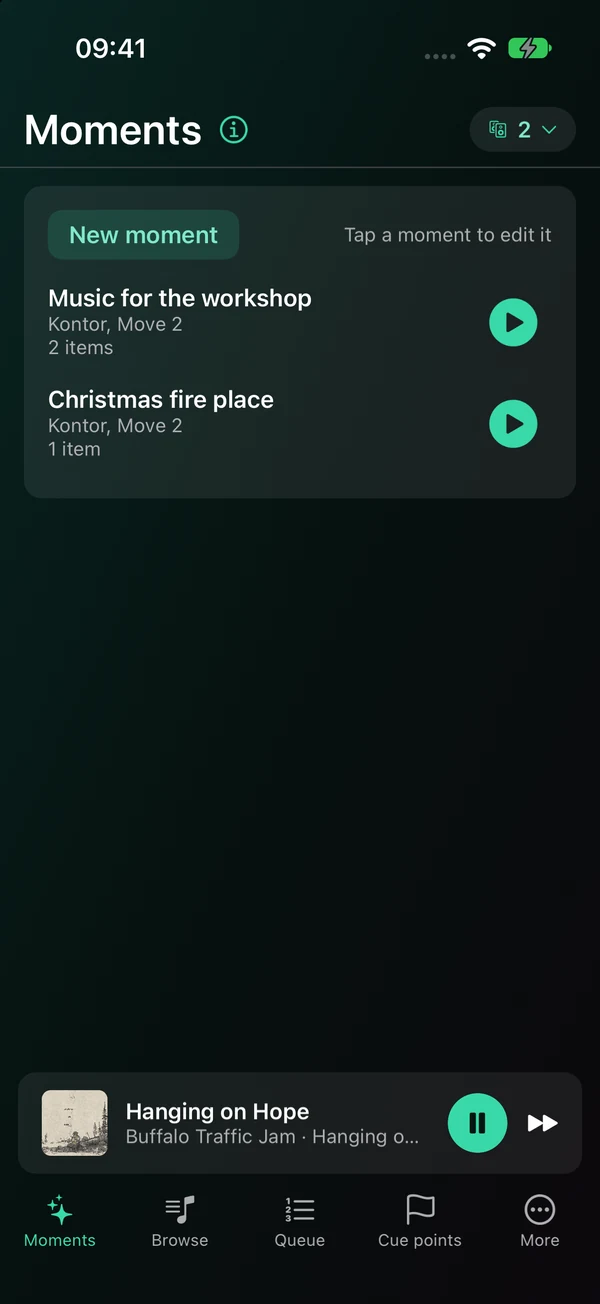
Group rooms to play together: drag a room out of its group, or drag one group onto another to put them together. A round + adds a room, another button splits the group and a third saves it as a new moment, and a spinner shows while the rooms regroup. Move to… moves what is playing to another room, and a regroup can be undone for a few seconds after. Open a group to see its queue. On iPhone, change the speakers in a group — add a room or take one out — right from Now Playing too. A portable speaker's battery shows beside its room, with a mark while it charges.
Windows · iPhone
Several Sonos systems
S1 and S2 systems side by side in one app. Pick a speaker group from any system in the list at the top, and Sonopley switches to it. Open the app where only another system's speakers answer — in your other house, say — and Sonopley switches to that system and says so.
Windows · iPhone
Now playing
Play, pause and skip, move through a track or jump 15 seconds back or forward, with the cover art beside it. A TV button beside the group's name switches it to a soundbar's TV, and a Line-in button to a speaker's line-in — each shown only where the speaker has that input.
Windows · iPhone
The queue
See what is coming up, drag a song to a new place, remove one, clear the lot, or play from any song — it shows as playing the moment you choose it. Save the queue a room is playing from with Save as playlist…, and it is kept as a folder in your Sonopley favourites, in the folder you choose.
Windows · iPhone
Volume that keeps rooms in step
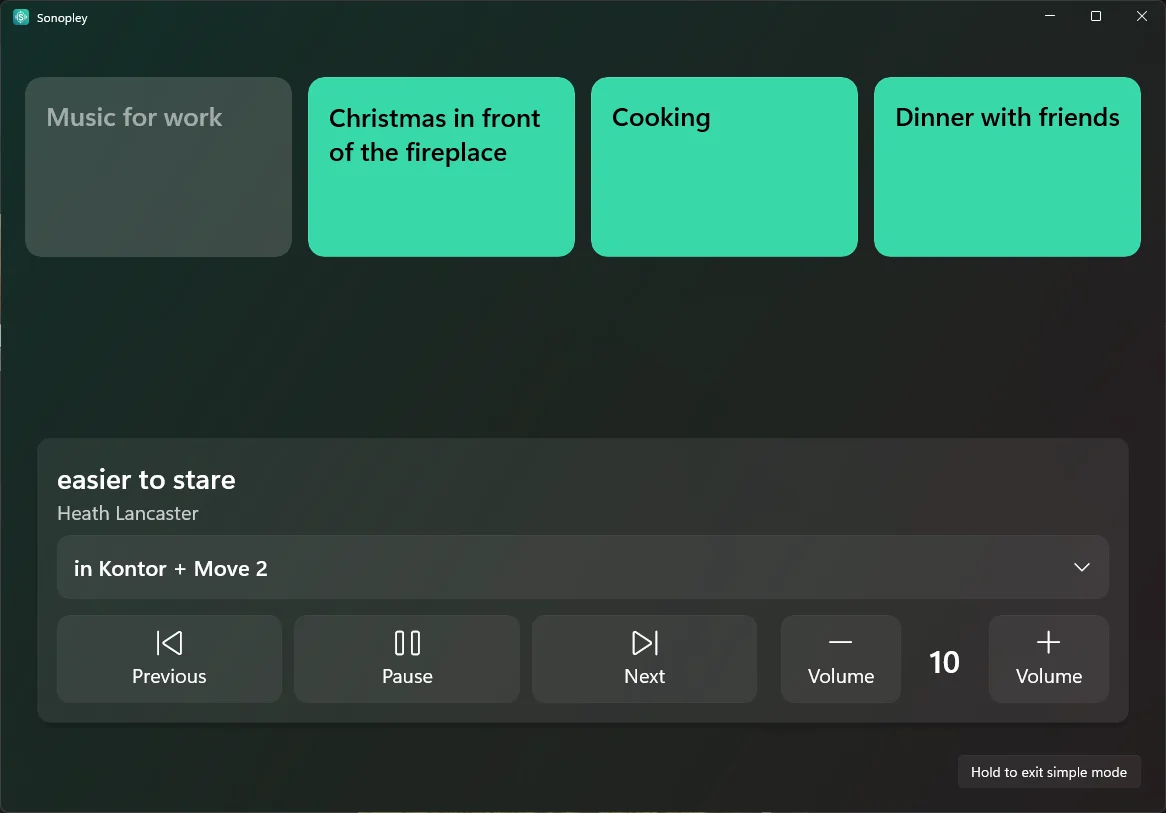
Move a group's volume and every room follows, keeping how loud each is compared with the others. Each room has its own volume and mute too, and the level shows above the slider as you move it. On iPhone, Now Playing can show − and + buttons beside each level instead of sliders, as simple mode does.
Windows · iPhone
Bass, treble, the Sub and night mode
Bass, treble and loudness for each room, balance on speakers that offer it, a Sub's on-off switch and level, and night mode and speech enhancement on speakers that have them, such as a Beam. Choose the speaker from a list, and one button, after asking, puts all its sound settings back to Sonos's defaults.
Windows · iPhone
Shuffle, repeat and crossfade
Shuffle, repeat the queue or one song, and fade one song into the next.
Windows · iPhone
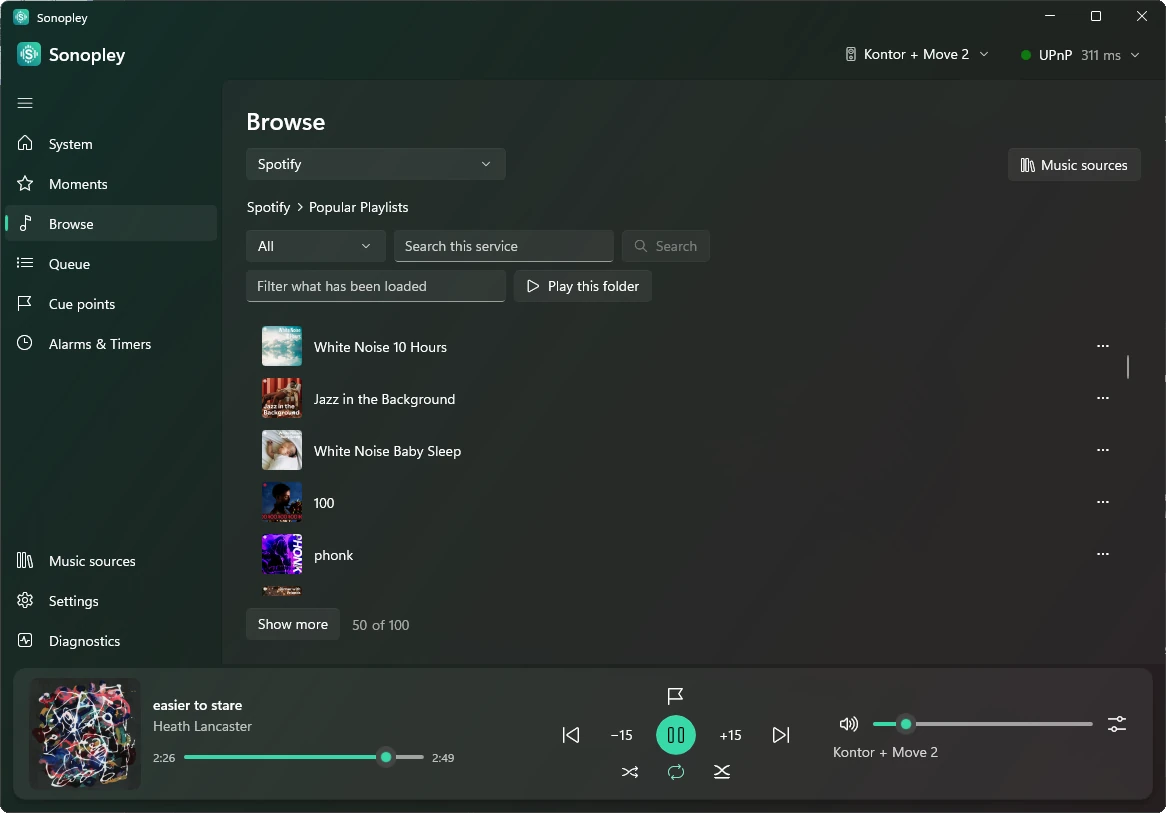
Browse everything in one place
Your Sonopley favourites, Sonos Favourites, saved playlists, radio and the music services you add on the Music sources page — with a letter index to jump through long lists. Pin any folder to the top of its source — Spotify's Made For You, say — and it waits there as a tile. Add a song to a moment or your favourites and Sonopley says where it went.
Windows · iPhone
Search every music service at once
In Browse, choose All music sources, and one search box searches every music service you have added, all at once — or only the ones you include on the Music sources page. The first answers from each service come under its name, grouped by type — playlists, artists, albums and songs first — and labelled with what each one is; Show more opens the rest in that service. Inside one service, search for everything at once and get the answers grouped under headings: playlists, artists, albums and songs first, then whatever else the service finds.
Windows · iPhone
Sort a long list
Sort a list in Browse — a playlist, an album, a folder or your Sonopley favourites — in its original order, reversed (newest first), or by title, artist, album or length. Play it and it plays in the order you see, and each list remembers how you sorted it.
Windows · iPhone
Podcasts and audiobooks
Play podcast episodes from TuneIn and audiobooks from Storytel, picking up where you left off.
Windows · iPhone
Play now, your way
Play now asks each time: replace the queue, play next or add to the end — or choose one for good in the settings. On iPhone, hold a song or an album for those three choices, whatever the setting. A long playlist starts with its first song while the rest is added. And choose whether a playlist is queued as the speaker has it or song by song. The ▶ button on a playlist or folder follows your choice too — hold it, or right-click it on Windows, to choose another way just this once.
Windows · iPhone
Alarms and the sleep timer
Create, change, switch on and off and delete alarms that wake you with a playlist, a station or a song. Set a sleep timer for a group.
Windows · iPhone
Settings and diagnostics
Speaker settings for each room's sound, where your speakers are and adding one by its address; App settings for the language, a theme and a light or dark look, how the app plays, how many results Browse shows before Show more (50, 100, 200 or All), and Show tips — now and then a short tip, such as marking your place in an audiobook or saving a grouping you use often as a moment; and a diagnostics page. When something fails, Sonopley says what went wrong in plain words.
Windows · iPhone
Themes, some of them moving
Twenty-two themes, each light and dark. Six stay still — Sonopley's own teal, Ocean, Forest, Sunset, Graphite and Pink — and two bring something gently moving behind the pages: Rain and Pride. Choose Auto by season and let the year decide — it brings the other fourteen, which cannot be picked by hand: Winter, Spring, Summer and Autumn in their seasons, and ten holiday themes on their own days; which ones, and when, is left as a surprise. Rain, snow, butterflies, drifting clouds, falling leaves or rising hearts, and more on the holidays — switched off with Seasonal animation, and never while your phone or computer is set to reduce motion.
Windows · iPhone
In your language
Both apps speak English, Swedish, Norwegian, Danish, Finnish, German, French, Spanish and Italian. Choose yours the first time you open Sonopley, and change it any time in App settings.